
1
Send to the shared area
When one item or a multi-selection is active, the shared-area button can copy the selected part from the workspace, group, true/false action branch, dialog, and variables surfaces into the device-local library.
Visual Builder guide
What every no-code block does, when to use it, how to configure it, and worked examples. Search the block list or browse it by category; every block has its own page you can share.
Build your first macro →Wire blocks in the logic workspace →

Searches for a template image on screen
Block Preview
Captured from the in-app Visual Builder block card in the English UI.
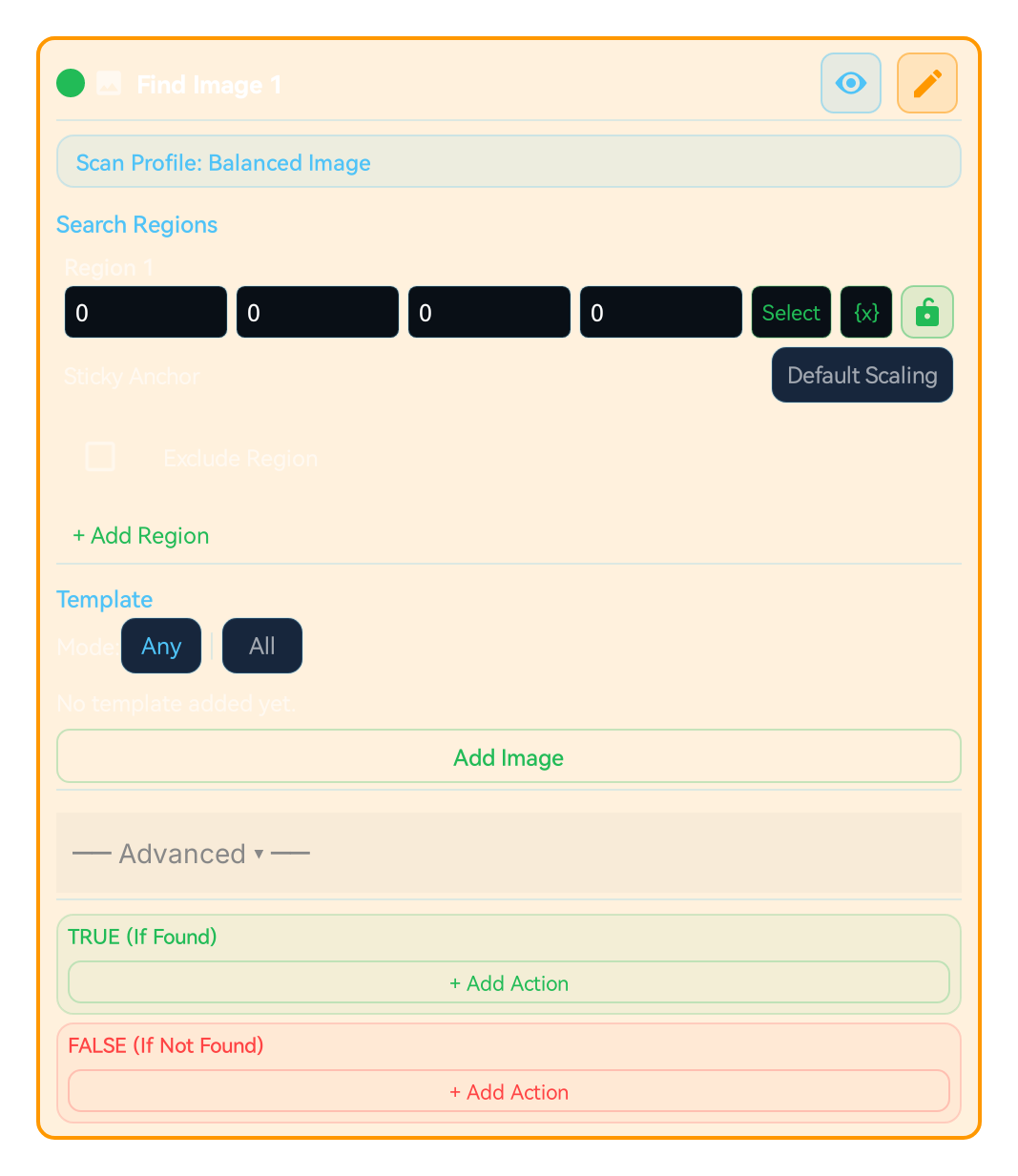
Block Preview
Captured from the English Visual Builder block card with the Advanced/extra settings panel expanded.
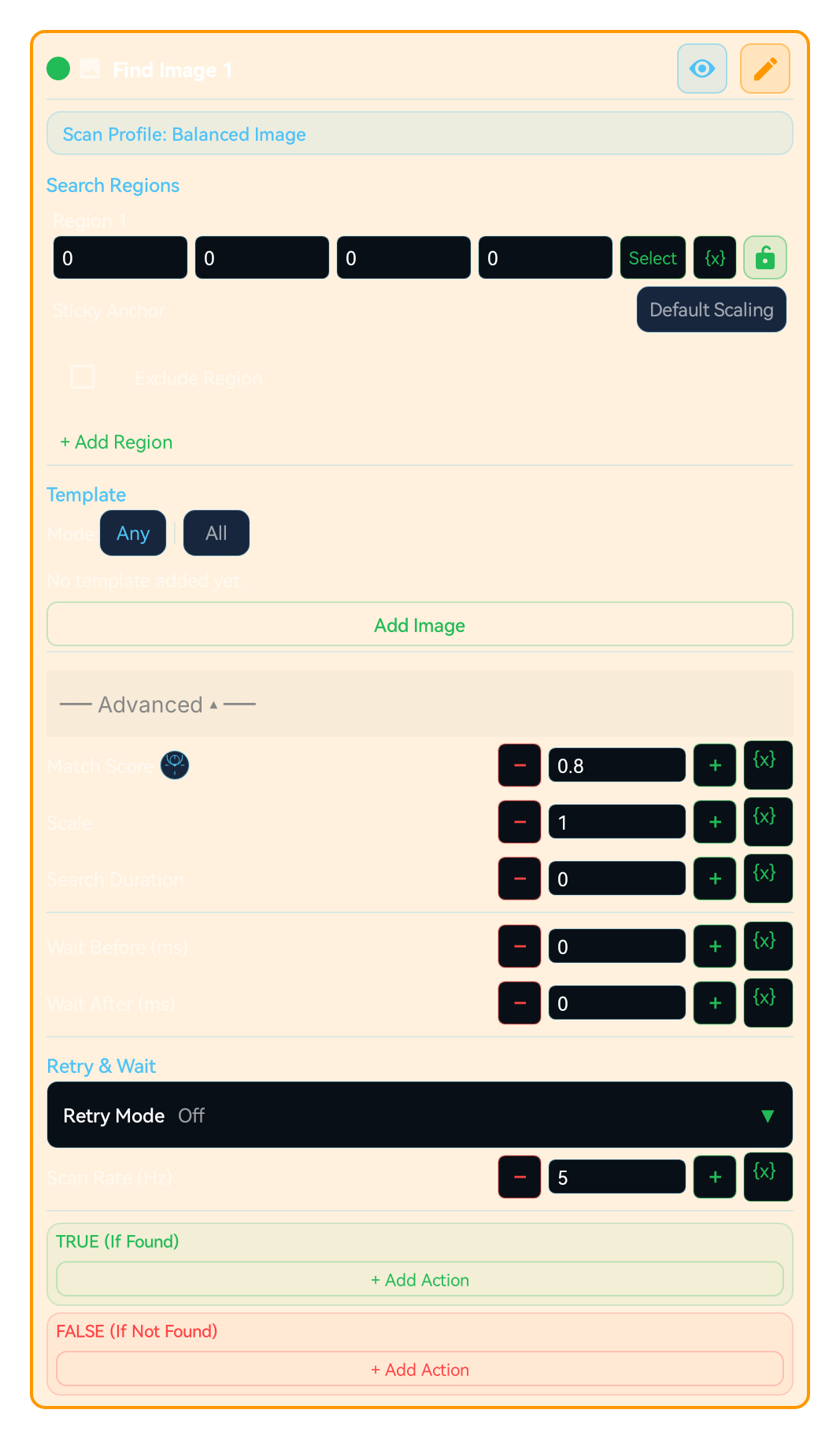
Searches for a specific template inside the selected scan region. Goes to TRUE if a match is found, FALSE otherwise. Scanning runs with the single engine you select; there is no automatic full-screen fallback.
IMAGE is not only about choosing one template. In the builder, multiple regions and per-region excludes are a core part of making the flow stable.
IMAGE, TEXT, COLOR and the other search blocks that use the Search Regions editor can define several search regions with + Add Region; OCR_VALUE tries its read regions in order. Inside a search region, Exclude Region skips noisy areas such as a HUD or a badge, and it applies only to the search region it belongs to. From 1.0.51 one search region can hold several excluded regions, each with its own shape and its own variable or Dialog binding.Newv1.0.51
You can now assign a sticky anchor to each search region. This brings Region.sticky into the no-code surface so the region can stay aligned to anchors such as top_left, bottom_right, or center when screen geometry changes.
Search Duration (ms) defines one search window; 0 means a single look. Retry Mode in the Retry & Wait section is Off, Infinite Loop, Retry On True, Retry On False, Wait Until Found, or Wait Until Gone, so a block becomes a one-shot check, a controlled polling step, or a step that waits for a target to appear or to disappear. Retry Timeout (ms, 0 = unlimited) bounds the loop; Scan Rate (Hz) sets scans per second.
mScore, scale, and scan engine choices matter across themes, display sizes, and rendering differences. Smaller regions plus the right engine dramatically improve builder stability.
Use when you want to check if any screen element is visible:
Checking if a button appeared
Detecting if a notification or alert opened
Waiting for a loading screen to finish
Verifying navigation to a specific page
Checking if any icon or visual element exists
Add "Image (IMAGE)" block
Add the template with "Add Image"; with several templates pick the Search Mode: Any / All / Sequential (each template with its own branch)
SCAN REGION: Always constrain the search area (smaller = faster); "+ Add Region" adds more regions
SCAN ENGINE: Balanced Image (balanced_image) is the default
MATCH RATIO (mScore): lower = flexible, higher = stricter
SCALE: adjust for device differences
SEARCH DURATION: 0 = single attempt
SCAN RATE (Hz): attempts per second inside the retry window; 0 = fastest
Set the Retry Mode and the TRUE/FALSE branches
ADVANCED — SCORE & POSITION: name a "Score Variable" (e.g. matchScore) and write the match location into matchX/matchY/matchW/matchH; then COMPARE on the score or CLICK {matchX} to act where it was found
ADVANCED — MULTI-MATCH: if the template appears in many spots, set the selection mode (First / Best score / Nearest / Random / Sequential)
Image to search for. Capture from screen or select from gallery; several templates can be added
Screen area to search [x, y, width, height]; rectangle, rounded rectangle, ellipse or triangle. Smaller = faster
0.10–1.00 range; 0.80 on a new block. Low = flexible, high = exact. Slider, manual input and lightbulb binding
1.0 = original size (0.50–3.00). For different screen resolutions. Slider, manual input and lightbulb binding
Balanced Image (balanced_image, default), Quick Image (quick_image), Precision Image (precision_image), Small Object Image (small_object_image), Color-Aware Image (color_aware_image), Strict Image (strict_image), Edge / Shape Image (edge_image) and Feature Image (feature_image, ORB keypoints)
0 = single try, 5000 = keep trying for 5 s. Slider 0–30000 ms + lightbulb binding
Attempts per second inside the retry window: 1–30 Hz; 0 = fastest pace
Wait before searching. Slider 0–5000 ms + lightbulb binding
Wait after searching. Slider 0–5000 ms + lightbulb binding
Off / Infinite Loop / Retry On True / Retry On False / Wait Until Found / Wait Until Gone (TRUE runs once the target has gone)
Total time for the retry modes; 0 = unlimited. In the Wait modes, 0 uses the Search Duration
Name a variable in Advanced (e.g. matchScore) and the 0.0–1.0 confidence (1.0 = perfect match) is written there when a match is found. Then COMPARE "matchScore >= 0.90" to drop weak matches just above the threshold
Writes the match box into your own variables (e.g. matchX, matchY, matchW, matchH). Bind them in later blocks with {x} from the lightbulb: CLICK {matchX},{matchY} taps where it was found, MATH_EVAL targets a neighbour (delX = matchX + matchW + 60)
When the template is found in many spots at once (20 chests, 10 "Claim" buttons), chooses which one is handed to the next action: First (in scan order), Best score (clearest), Nearest (closest to the screen centre), Random (different each run) or Sequential (the next match on each pass). Put a "Click on Match" CLICK on TRUE and wrap IMAGE+CLICK in a GROUP loop to process the whole field.
The engine panel is grouped: General · Colour and light (new Grayscale) · Shape (new Edge direction · Experimental, Edge (legacy)) · Special (new Pixel exact and Feature points (SIFT)). ORB stays only on blocks that already use it, as "Feature points (legacy, ORB)". Plus per-image transparency and angle (±45° / 360°), a Condition per template and multiple exclusions. Details below
| Parameter | Description |
|---|---|
| Template | Image to search for. Capture from screen or select from gallery; several templates can be added |
| Scan Region | Screen area to search [x, y, width, height]; rectangle, rounded rectangle, ellipse or triangle. Smaller = faster |
| Match Ratio (mScore) | 0.10–1.00 range; 0.80 on a new block. Low = flexible, high = exact. Slider, manual input and lightbulb binding |
| Scale | 1.0 = original size (0.50–3.00). For different screen resolutions. Slider, manual input and lightbulb binding |
| Scan Engine | Balanced Image (balanced_image, default), Quick Image (quick_image), Precision Image (precision_image), Small Object Image (small_object_image), Color-Aware Image (color_aware_image), Strict Image (strict_image), Edge / Shape Image (edge_image) and Feature Image (feature_image, ORB keypoints) |
| Search Duration | 0 = single try, 5000 = keep trying for 5 s. Slider 0–30000 ms + lightbulb binding |
| Scan Rate (Hz) | Attempts per second inside the retry window: 1–30 Hz; 0 = fastest pace |
| Wait Before (ms) | Wait before searching. Slider 0–5000 ms + lightbulb binding |
| Wait After (ms) | Wait after searching. Slider 0–5000 ms + lightbulb binding |
| Retry Mode | Off / Infinite Loop / Retry On True / Retry On False / Wait Until Found / Wait Until Gone (TRUE runs once the target has gone) |
| Retry Timeout (ms) | Total time for the retry modes; 0 = unlimited. In the Wait modes, 0 uses the Search Duration |
| Score Variable (Advanced) | Name a variable in Advanced (e.g. matchScore) and the 0.0–1.0 confidence (1.0 = perfect match) is written there when a match is found. Then COMPARE "matchScore >= 0.90" to drop weak matches just above the threshold |
| Match Position (matchX/Y/W/H) (Advanced) | Writes the match box into your own variables (e.g. matchX, matchY, matchW, matchH). Bind them in later blocks with {x} from the lightbulb: CLICK {matchX},{matchY} taps where it was found, MATH_EVAL targets a neighbour (delX = matchX + matchW + 60) |
| Multiple Matches (Advanced) | When the template is found in many spots at once (20 chests, 10 "Claim" buttons), chooses which one is handed to the next action: First (in scan order), Best score (clearest), Nearest (closest to the screen centre), Random (different each run) or Sequential (the next match on each pass). Put a "Click on Match" CLICK on TRUE and wrap IMAGE+CLICK in a GROUP loop to process the whole field. |
| New image optionsNewv1.0.51 | The engine panel is grouped: General · Colour and light (new Grayscale) · Shape (new Edge direction · Experimental, Edge (legacy)) · Special (new Pixel exact and Feature points (SIFT)). ORB stays only on blocks that already use it, as "Feature points (legacy, ORB)". Plus per-image transparency and angle (±45° / 360°), a Condition per template and multiple exclusions. Details below |
Scenario 1: Auto-click "OK" button when it appears
Add IMAGE → save "OK" button as template
Scan region: Area where button can appear
Retry Mode: "Wait Until Found", Retry Timeout: 5000 ms
Add CLICK to TRUE → enable "Click on match"
Scenario 2: Wait for loading screen to finish
IMAGE → save the loading icon as template
Retry Mode: "Wait Until Gone", Retry Timeout: 10000 ms
TRUE runs once the icon has left the screen: proceed to the next step
FALSE runs when the time is up: record it with LOG
MOST COMMON COMBINATIONS:
IMAGE + CLICK: Find something and click it
IMAGE + WAIT: Wait for something to appear/disappear
IMAGE + SWIPE: Swipe when something is found
IMAGE + IMAGE: Multiple visual checks in sequence
IMAGE + COMPARE: Make decisions based on found position
IMAGE + COMPARE (branch on score): Compare the score variable to a threshold (matchScore >= 0.92)
IMAGE + CLICK {matchX}: Store the match position in a variable then click there
IMAGE + GROUP (multi-match): Selection mode + loop to process every copy
IMAGE + LOG: Log search results (for debugging)
Searches for a template image on screen
WARNING:
Starting macro without selecting template means block always goes to FALSE
Do not leave scan region as full screen — slow and may cause false matches
Do not capture templates from areas with changing backgrounds
Do not lower match ratio below 0.50
Adjust Scale when using on devices with different resolution
The same block at three levels: a quick start, the real options, and professional techniques.
The IMAGE block searches for a small template image inside your scan region. If it finds it, the block goes to TRUE; otherwise it goes to FALSE. The simplest use: capture a button with "Add Image", shrink the scan region to a small area where the button can appear, and add a CLICK with "Click on match" on the TRUE branch. It runs with a single engine and has no automatic full-screen fallback, so always constrain the region.
Choosing the Scan Engine (scanEngine) is the core decision: Balanced Image (balanced_image) is the default balance; Quick Image (quick_image) is the fastest on stable screens; Precision Image (precision_image) is stricter for tiny differences and critical checks; Small Object Image (small_object_image) is for small icons; Color-Aware Image (color_aware_image) and Strict Image (strict_image) also verify colour identity (Strict Image searches at exact scale); Edge / Shape Image (edge_image) matches outline and shape while ignoring colour, theme and brightness; Feature Image (feature_image, ORB) uses scale- and rotation-invariant keypoints and needs a large, textured template. Match Ratio (mScore) ranges 0.10–1.00; 0.80 on a new block, and you should not drop below 0.50. Scale (0.50–3.00) compensates for size differences across resolutions. Timing: with the Retry Mode off, a Search Duration (searchTimeout) of 0 makes a SINGLE attempt, and a value above 0 keeps scanning within that window. Scan Rate (scanRateHz) is the attempts per second inside the window (1–30); 0 is the fastest pace with only a 1 ms pause between attempts, so capture and recognition time set the real rate; pick an explicit value such as 5 Hz for battery-friendly polling. The Retry Mode has six options: Off, Infinite Loop, Retry On True (repeats the TRUE branch while found, FALSE once it is gone), Retry On False (repeats the FALSE branch while missing, TRUE once found), Wait Until Found (TRUE when found) and Wait Until Gone (TRUE once the target has left the screen). In the two wait modes FALSE runs when the time is up; Retry Timeout sets the total time, and when it is 0 the Search Duration is used. The Search Region is the real speed-and-accuracy lever: "+ Add Region" defines several regions. Each region has its [x,y,w,h] area, a shape (rectangle, rounded rectangle, ellipse, triangle), an Exclude Region with its own shape (an ellipse inside an ellipse gives a ring) and a Sticky Anchor (stickyAnchor). Anchor options: none, top_left, top_center, top_right, center_left, center, center_right, bottom_left, bottom_center, bottom_right; the anchor pins the region to that corner/edge when the screen rotates or the resolution changes. On another search block's TRUE branch, "Parent region" reuses that block's region, and "Found Target Anchor" moves and resizes the red search region relative to the target the earlier block found (with no target the block uses its own region).
The real power lives under ADVANCED → Match Tuning (matchTuning): use Score Variable (scoreVar) to write the 0.0–1.0 confidence into a variable, then immediately COMPARE "matchScore >= 0.92" to handle the threshold's grey zone. Context variables (contextX/Y/W/H) spread the match box into variables like matchX/matchY/matchW/matchH; then CLICK {matchX},{matchY} there or target a neighbour with MATH_EVAL (delX = matchX + matchW + 60). For accessibility and touch-target testing, Jitter (jitterEnabled + jitterPaddingPx) selects different bounded valid points inside the box instead of only its centre. Multi-Target Strategy (multiTargetStrategy): first / best_score / nearest (closest to the screen centre) / random / sequential; use sequential + per_frame to process every match. Setting sequentialClickMode = per_click rescans after each click so it stays accurate even if the screen scrolls. Add multiple templates (searchImages) and the Search Mode (imageSearchMode) becomes "any" (Any), "all" (All at once) or "sequential" (each template is tried in turn with its own TRUE/FALSE flow; the Retry Mode does not apply in this mode). SCALE CALIBRATION is the key to multi-resolution distribution. On the device where you captured the template, Scale = 1.0 works perfectly; if the match ratio drops on a different screen, follow these steps: (1) enable scoreVar and LOG the matchScore, (2) run the macro on the target device and read the real score, (3) change Scale in 0.05 steps (e.g. 1.10–1.30 on a high-DPI device, 0.75–0.95 on a low-DPI one) and compare the score at each step, (4) lock in the Scale where the score peaks. A practical shortcut: the ratio target-device-width / capture-device-width is a good starting Scale. If you distribute to many devices, either calibrate Scale per device or capture the template at the most common resolution and loosen mScore a little.
Small, reproducible examples that combine several blocks — build them straight into your own macro.
This block is useful on its own — but it shines when paired with the right partners.
The most common pairing: find something and tap exactly on it without entering coordinates; clickOnMatch reuses the match location automatically.
A tight scan region is the biggest speed+reliability lever; the anchor keeps that tight region on the correct corner even when the device rotates or resolution changes, so you do not lose the narrowing benefit.
Compare the matchScore written by scoreVar against a threshold (matchScore >= 0.92) to reject weak matches; a second gate over the risky grey zone just above the threshold.
contextX/Y variables store the match position; because it lives in a variable you can click that spot even after other steps, waits, or loops.
Combined with the sequential multi-target strategy, it picks the next copy each pass and the FALSE branch breaks the loop once they are all consumed.
When waiting for something like a loading animation to appear or vanish, WAIT inserts breathing room between passes so you do not burn CPU needlessly.
Leaving the scan region as full screen: it is slow and a similar image elsewhere causes a false match. Fix: shrink the region to the smallest rectangle where the target can appear.
Capturing the template from an area with an animated or changing background. Fix: capture from a region with a stable background and crisp edges; switch to precision_image if needed.
Not adjusting Scale on a device with a different resolution and wondering why nothing matches. Fix: calibrate Scale by testing on the target device.
Expecting "wait until it appears" behaviour with the Retry Mode off and a Search Duration of 0: the block makes a single attempt and can fall straight to FALSE. Fix: give the Search Duration a window (e.g. 1500 ms), or choose Wait Until Found and cap the total time with Retry Timeout.
Add the scoreVar + COMPARE pair to every critical search: even if a 0.81 match counts as "found", COMPARE matchScore >= 0.92 ensures you only act on genuinely clean matches.
Tune scanRateHz to the goal: 0 is the fastest pace (only a 1 ms pause between attempts); choose an explicit low rate such as 5 Hz for battery-friendly UI polling, and watch CPU/heat on older devices before raising it.
The #1 way to speed up a search: shrink the scan region to the smallest rectangle where the target can appear and pin it with stickyAnchor. A tight region speeds scanning manyfold and rejects look-alikes elsewhere on screen.
To test touch-target coverage, enable jitterEnabled with a small jitterPaddingPx; each test tap lands on a different but valid point inside the box. Keep the loop bounded and verify the result.
On scrolling lists use the sequential strategy with sequentialClickMode = per_click; it rescans after each click, so even if the list shifts it still hits the next correct item.
Newv1.0.51Transparent templates: when a template's background has been removed (transparent pixels), the transparent areas are now ignored when matching, so only the object itself is compared and it is also found on a different background. This check is a little slower: it finishes early when the target is on screen and takes longer when it is not, so keep the scan region tight. To keep the previous behaviour (transparent pixels read as black), turn off "Ignore transparent areas" under the template in the block. Templates with only a few transparent pixels (less than 2%) work exactly as before. For moving creatures, use the Agent Detect block.
Newv1.0.51From 1.0.51 the engine panel is grouped: General (Balanced Image, Quick Image, Precision Image, Small Object Image), Colour and light (Grayscale, Color-Aware Image, Strict Image), Shape (Edge direction · Experimental, Edge (legacy)) and Special (Pixel exact, Feature points (SIFT)). The new options are Grayscale, Edge direction, Pixel exact and Feature points (SIFT). Edge (legacy) is the previous Edge / Shape engine; for new blocks try Edge direction. The previous ORB engine is listed only on blocks that already use it, as "Feature points (legacy, ORB)"; new blocks use Feature points (SIFT). Grayscale compares the light and dark pattern and may also find the same pattern in another colour. Solid-colour cut-outs must also match brightness and contrast with their surroundings. Edge direction compares line directions; solid-colour cut-outs also use colour verification. Pixel exact needs the same resolution and Scale 1.00, with colour tolerance 0–64. Feature points (SIFT) needs a detailed template at least 64 px on its shorter side. Automatic, Silhouette and Rotated search are not offered in the panel; a block that already stores one of them (set by a script edit, by MH-AI or in a newer app build) keeps it, and the panel still shows that choice. A new block still starts with Balanced Image. Compare modes on a still screen, then test and save the chosen mode. Slow modes run only when requested.
Newv1.0.51Mode settings: Pixel exact has a Colour tolerance of 0–64 (default 24); an untouched 0.80 threshold becomes 0.98 when you pick it, and if Scale is not 1.00 the block warns and offers "Set Scale to 1.00". Edge direction has an Edge sensitivity of Low, Normal or High. Grayscale deliberately drops the colour check, so existing scores may need retuning. Match Score Test → Compare modes tries the modes on a still screen and suggests the one that separates the target most clearly from the next best place; slow modes such as SIFT run only with "Also try slow modes". If the selected mode cannot run, the block searches with Balanced and shows the reason.
Newv1.0.51Per-image angle: the Angle button in the template row chooses Block setting, ±45°, 360° or Variable (Experimental). It affects only that image and searches in-plane rotations with the current mScore and scale. For a variable or Dialog value, 0 uses the block setting, 1–179 is the range in either direction and 180–360 is a full turn; changes apply on Save. Wide angles need more processing, so keep the region close to the object. For the back of a 3D object or another animation, add separate views with Add Image and choose Any; angle search cannot infer an unseen face.
Newv1.0.51With a transparent template the click point stays inside the visible object: "Click on match" taps the object itself, not the empty cut-out area.
Newv1.0.51Item condition: the template's lightbulb → Condition → source (a variable, an earlier block output or a Dialog field) → Expected Value → Save. All options of Radio Group, Dropdown and Multi Select fields are listed; with Equals off the entry is used when the value differs. Any and All combine only active entries, and all-inactive never counts as a match; Sequential skips an inactive entry and its branch. A missing source or a deleted Dialog field never enables the entry. The condition does not change the entry's own value or value binding.
Newv1.0.51Multiple exclusions: "+ Exclude Region" adds as many exclusions as you need to each search region, each with its own shape, coordinates, screen guide and variable/Dialog binding. For example, exclude a fixed HUD and a corner badge separately. A disabled exclusion keeps its values but does not affect the scan.
Newv1.0.51New IMAGE, TEXT, COLOR, OCR_VALUE and AI_DECISION blocks start with a 10 ms Search Duration, and new blocks that have Wait After start at 50 ms; saved projects and custom Lua are unchanged. When you use Wait Until Found or Wait Until Gone, set the total time with Retry Timeout; if Retry Timeout stays 0, the 10 ms Search Duration becomes the total time.
Newv1.0.51In the code editor, Region:find and findMulti accept engine = gray_image, pixel_exact_image, orientation_image or sift_image, plus auto_image, silhouette_image and rotation_image, which the panel keeps hidden. Result:getEngine() reports the engine that actually ran and Result:getAngle() the match angle; Asset.image():transparent(false) turns the transparency mask off for that search.
The Lua below is what the Code Editor generates for this block with sample settings. Adding cases, branches, actions or loops, or changing settings, extends the generated code accordingly. Study it to see what the block does under the hood, to learn Lua, or to copy and adapt it. Use the Copy button (top-right) to paste it into the Code Editor, or “Try in Editor →” to run it in the live editor.
local match_score = nil

local _loop1 = true
while _loop1 do
 Snap.screenRefresh()
 local _reg3 = Region(0, 0, 540, 960)
 local m2 = (function()
  local _imageOk, _imageValue = pcall(function() return _reg3:find(Asset.image("btn_play"):mScore(0.8):scale(1.5), {engine="balanced_image"}) end)
  if not _imageOk then
   _lastMatch = nil
   error(_imageValue, 0)
  end
  return _imageValue
 end)()
 _lastMatch = m2
 if _lastMatch ~= nil then
  _loop1 = false
  match_score = (_lastMatch ~= nil and _lastMatch.getScore ~= nil and _lastMatch:getScore()) or 0
 else
  wait(1)
 end
end
Note: generated code can evolve across versions; helper names (e.g. _reg1, m1) and internal optimizations may change. The logic and the called APIs reflect the block’s behavior.
The guidance below is not identical for every block. It summarizes the professional controls that most often repeat in the selected block family.
Keep the search close to the target. Smaller regions are faster and more stable.
Exclude static noise, badges, animations, or reflective areas to reduce false matches.
Timeout and scan rate define whether the block acts as a single check or controlled polling step.
mScore, scale, and engine choice must be tuned together for theme, resolution, and rendering differences.
OCR_VALUE writes the number it reads to its result variable (default ocr_val); TEXT writes the text it passed through its find/replace step to the Save Read Value variable (default ocr_val). In Match Variables, the score variable (0.0–1.0 confidence) and the X/Y/W/H variables carry the match confidence and position into later blocks: branch on the score with COMPARE, and in CLICK bind the coordinates to them with {x} or turn on Click on match. _lastMatch is the last match that Click on match uses; _lastOcrText is kept only for older CUSTOM_CODE scripts.
TOUCH and TOUCH_BREAK cover recipe-style touch flows. Raw pointer choreography such as Touch.down, Touch.move, Touch.up, Touch.dispatch, Touch.reset, Touch.breakAll, and Touch.releaseAfter is not exposed as a first-class builder block.
Touch.downTouch.moveTouch.upTouch.dispatchTouch.resetTouch.breakAllTouch.releaseAfterThe DIALOG block and dialog designer cover a bounded field set in the builder: Info Text, Text Input, Checkbox, Description, Radio Group, Dropdown, Multi Select, Tab Group, Date Time, Number Range, Slider, Image Picker, Color Picker, File Picker, Recorder Picker, Tag, Signature, and Spacer. The buttons are designed too: the Positive button and Negative button tabs set each button’s text, background, and border color, corner radius, and minimum height next to a preview. Freer Setting.builder composition, multi-step wizard flows, and mixed HUD/dialog choreography still do not map 1:1 into the builder.
Newv1.0.51Two more fields: Agent Detect references (agent_detect_editor) lets the user pick a saved reference set or add and edit references, and Save confirms the selection; Navigation setup editor (navigation_editor) edits a saved map, marker and route from the Dialog and returns the setup and route selection without moving the character.
Setting.builderDialogHudTextViewAgentDetectEditorNavigationEditorHTTP_GET, HTTP_POST, and HTTP_PUT cover common fixed-method flows; HTTP_REQUEST covers one bounded request with method, header lines, body, content type, query parameters (GET and DELETE), timeout, and a bounded retry. These blocks never throw; they write the status code (-1 on a network failure). Cookie handling, chained request objects, and lower-level client flows still need the code editor.
Request()Request.setCookieRequest.getCookiesCUSTOM_CODEThe MAP, LIST, JSON_PARSE, REGEX_MATCH, and METRICS blocks cover the everyday cases: map actions, a static list, reading a value from a JSON path, regex match, find, replace, and split, and metrics actions. The rest of the Map, Array, JSON, Regex, and Metrics APIs (for example Array sort, filter, and map) is broader than the builder recipe model and stays on the CUSTOM_CODE and code editor side.
MapArrayJSONRegexMetricsRuntime helpers, raw Request objects, Lua built-ins such as print/pcall/xpcall, and free-form object chaining patterns are represented through CUSTOM_CODE or the code editor.
RuntimeRequestprintpcallxpcallCUSTOM_CODEEach block card now exposes an independent breakpoint toggle. When enabled, the breakpoint preference is stored with the block.
Breakpoints are only emitted into runtime code when Debug Mode is enabled from Visual Builder settings. When Debug Mode is off, breakpoints stay saved but do not pause execution.
Use ASSERT for fail-fast validation, and use breakpoints for step-by-step tracing and controlled pauses in the same flow.
Variables defined with SET_VARIABLE are accessible throughout the macro (global scope). All blocks can read/write the same variable.
However, a variable defined inside a GROUP will be 'nil' (undefined) until the GROUP executes. Blocks outside the GROUP using this variable may produce unexpected results.
FOR_EACH loop variables (item and index) only carry valid values inside the loop body. Outside the loop they are outside local scope and should not be used.
TRY_CATCH error variable is only valid within the catch block. If the try block succeeds, the catch branch is not entered and the error variable remains undefined.
TIP: Before using a variable inside a GROUP, assign a default value with SET_VARIABLE outside the GROUP. This way the variable won't be nil even if the GROUP has not run.
You can embed variable values and calculations into text fields using {{ expression }} syntax. Expressions inside double curly braces are evaluated as Lua code and the result is inserted into the text.
{{ expression }}Skor: {{ score + 1 }} → "Skor: " .. tostring(score + 1){{ name }} kazandı! → tostring(name) .. " kazandı!"X:{{ x }} Y:{{ y }} → "X:" .. tostring(x) .. " Y:" .. tostring(y)Expressions are checked by the sandbox policy. Security-sensitive calls like loadstring, require, debug are automatically blocked.
Keep scan regions as small as possible — improves speed, reduces false matches.
Always add an exit condition when using infinite loops (BREAK, timeout, or conditional exit).
Use network operations and error-prone steps inside TRY_CATCH.
If you need global error handling, use the Error Handler (ERROR_HANDLER) block as a singleton in the project.
Small coordinate offsets (CLICK/SWIPE) improve tap accuracy across different DPI and screen scales.
Customize macros with Dialog block — different parameters each run.
Define repeating steps once with GROUP_CALL, call from many places.
Cross-macro local library
The Local Shared Macro Area moves blocks, variables, dialog fields, gallery assets, and imported media dependencies between macros on the same device. It is device-local, not cloud sync, not Firebase sharing, and not a replacement for public macro sharing.
Professional usage model: put a reusable login flow, common scan region, shared dialog form, variable group, template image, color profile, replay recording, or imported PLAY_SOUND media file into the shared area from one macro, then import it from the relevant + menu in another macro.
VISUAL_BLOCKSVARIABLESDIALOG_FIELDSTEMPLATE_IMAGECOLOR_SWATCHREPLAY_RECORDMEDIA_FILEWhen one item or a multi-selection is active, the shared-area button can copy the selected part from the workspace, group, true/false action branch, dialog, and variables surfaces into the device-local library.
The shared-area entry under the + menu imports the selected item into the surface that opened it. Main workspace, group, action branch, dialog, and variables each receive the compatible item type.
Gallery items include template images, color swatches, replay records, and imported audio/media files. They can move between macros on the same device so repeated templates, colors, recordings, and PLAY_SOUND media assets do not need to be captured again.
The shared area is not a permanent dumping ground. Delete stale shared items from the shared-library panel; imports create a copy in the target macro and do not rewrite the source macro flow.
AI assistant
Tell MH AI what you want in plain language; it proposes the right block sequence and lands it in the workspace after you approve. In the current release it works with cloud providers such as Gemini, Claude, and OpenAI; on-device local models are on the roadmap.