Usage Guides

Step-by-step guides to use Macro Handler professionally.

Visual Academy

A clear step-by-step learning path for users who do not know the app

The sections below show real app screenshots without visual callout boxes. Each image is paired with clear steps explaining what to inspect, what to do first, why each setting matters, and how to grow a macro safely.

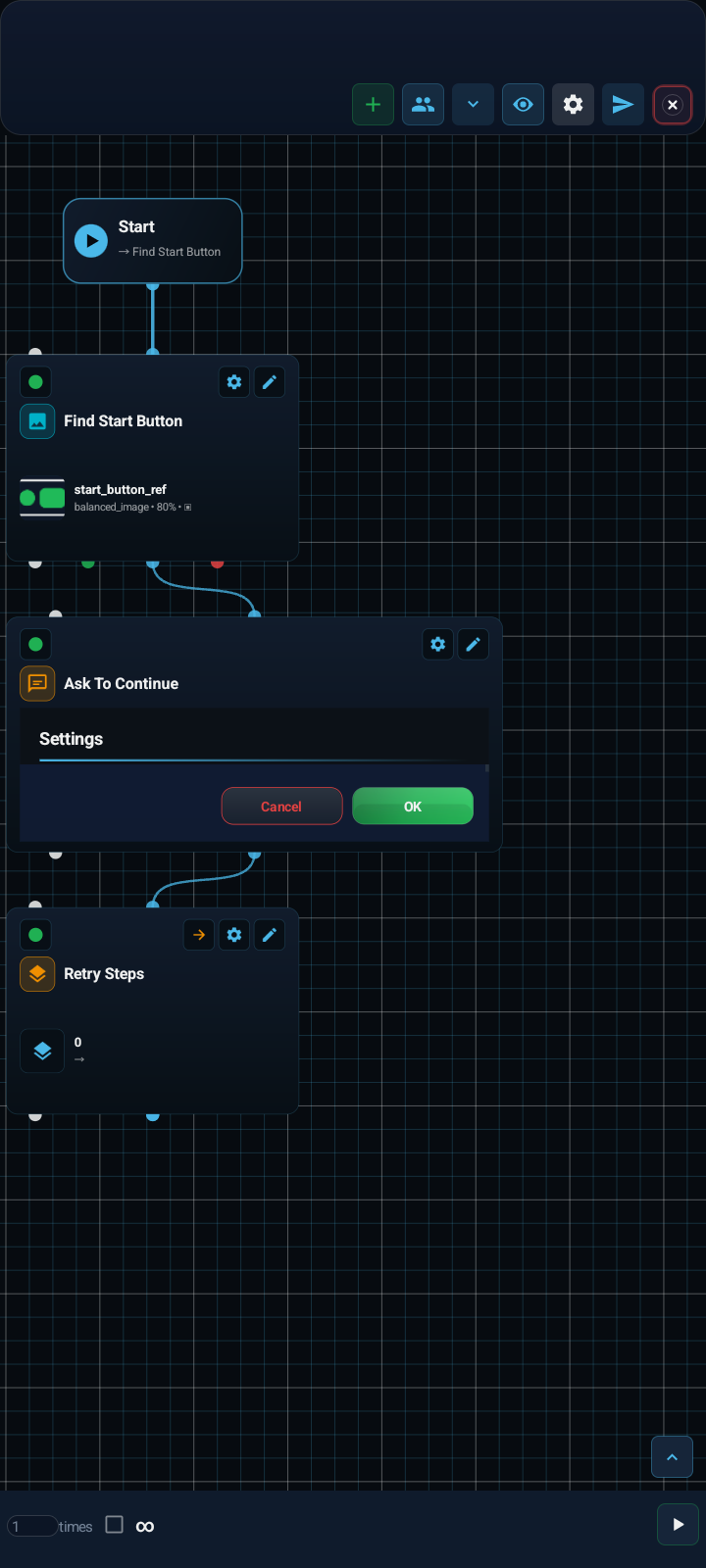
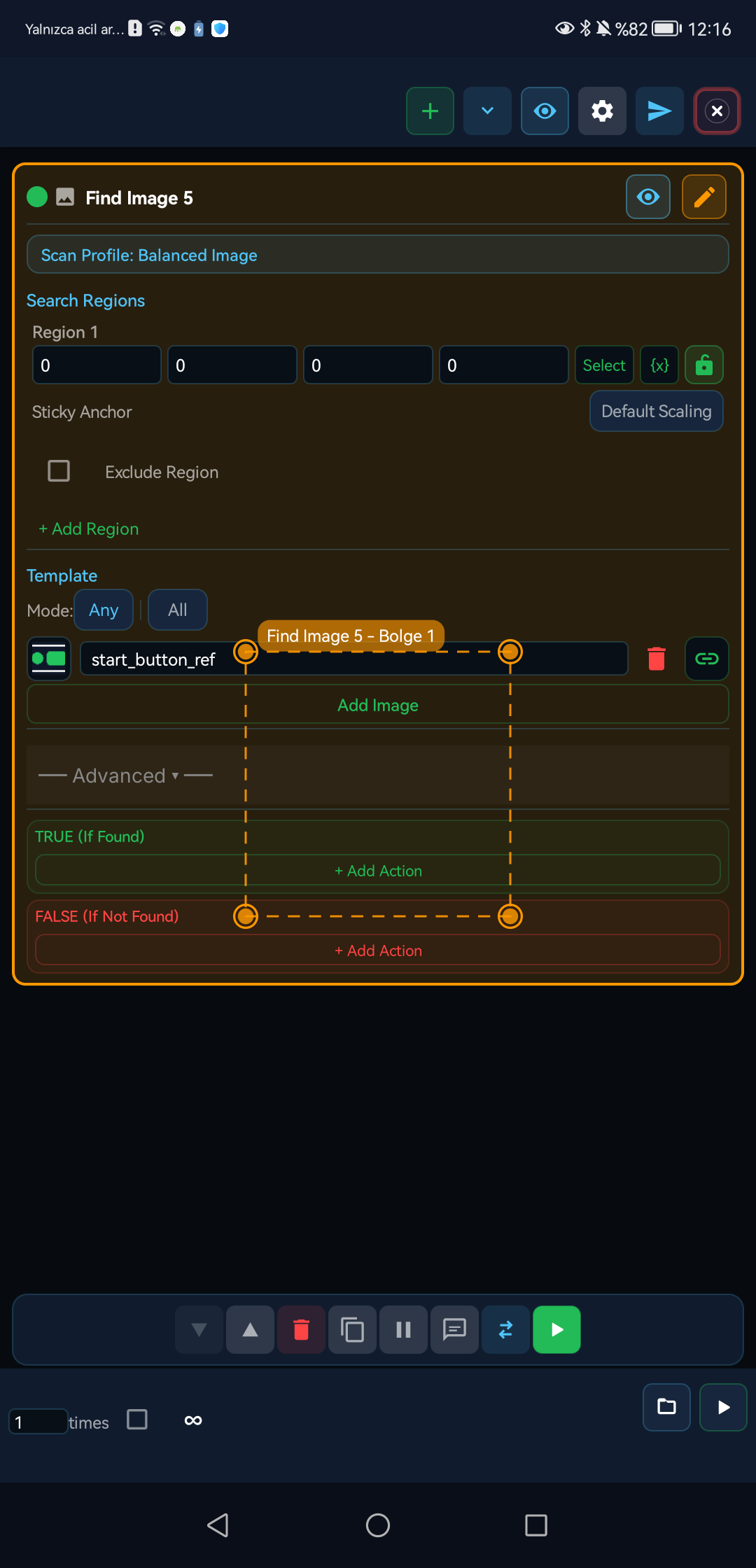
No-code workspace: block, region, and result flow

On scan blocks such as IMAGE, the user manages the target image, scan region, and true/false branches.

No-code workspace screen
  1. 1First inspect the target image and selected scan engine on the block card.
  2. 2Keep the scan region as tight as possible; wide regions reduce performance and accuracy.
  3. 3Treat TRUE and FALSE branches separately: action on found, wait or fallback flow on not found.

What is taught? Adding blocks, scan regions, tapping the last hit, and fallback branch logic.

In complex scenarios, IMAGE, COLOR, TEXT, and MOVING COLOR blocks should follow the same tight-region and controlled-timeout discipline.

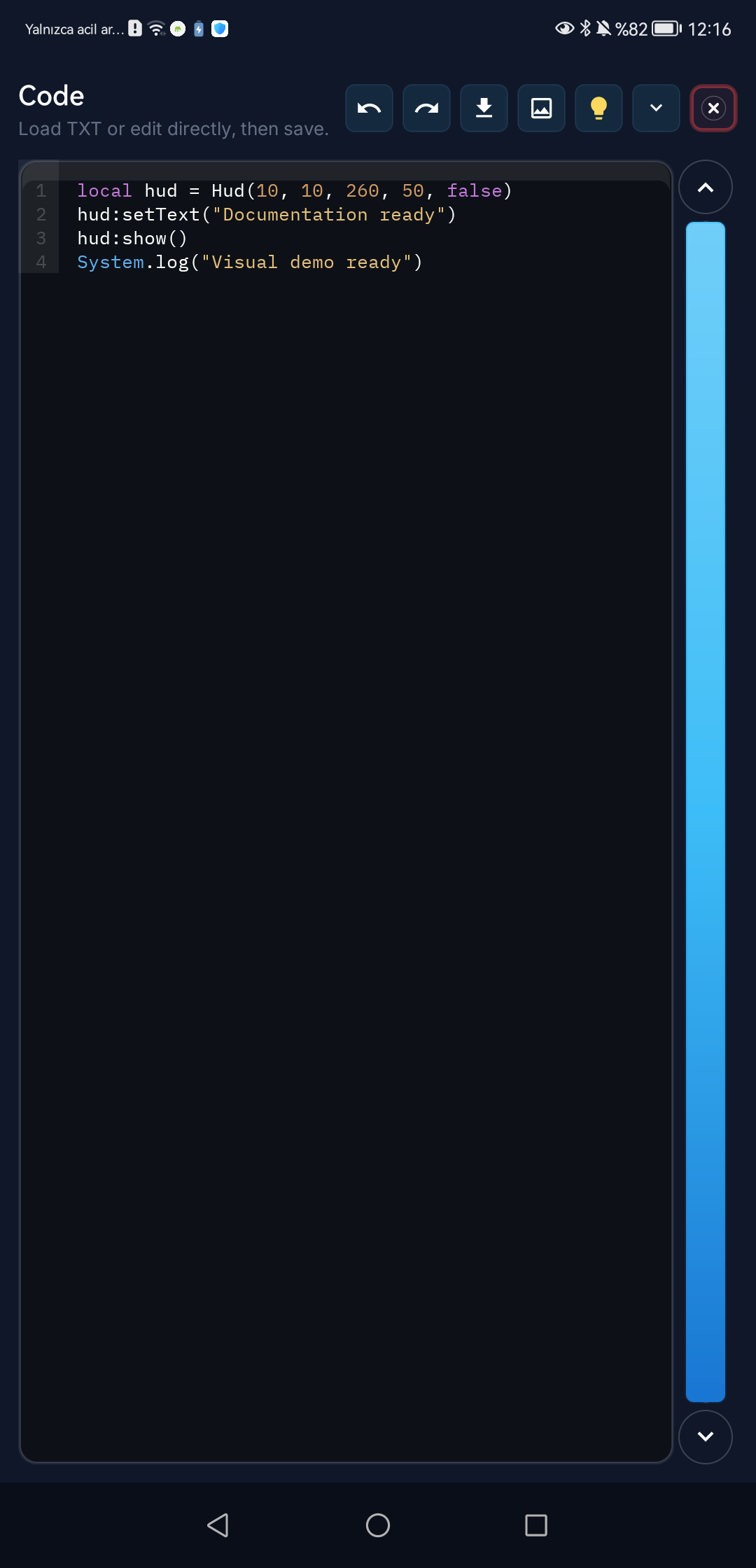
Code editor: API, snippets, and run discipline

For code users, the editor is taught through snippets, API examples, and safe loop discipline.

Code editor screen
  1. 1Learn where save, snippet, image, and run commands live in the toolbar.
  2. 2Write small, testable Lua sections first; use timeouts and error handling in long loops.
  3. 3Do not memorize API examples blindly; use Region, Asset, and quick tap flows by understanding the problem they solve.

What is taught? Macro API logic, ready-made code patterns, error handling, and production safety.

Before the API reference, the user sees screen refresh, Region, Asset, and quickTap visually.

Dialog and form area: collecting user input

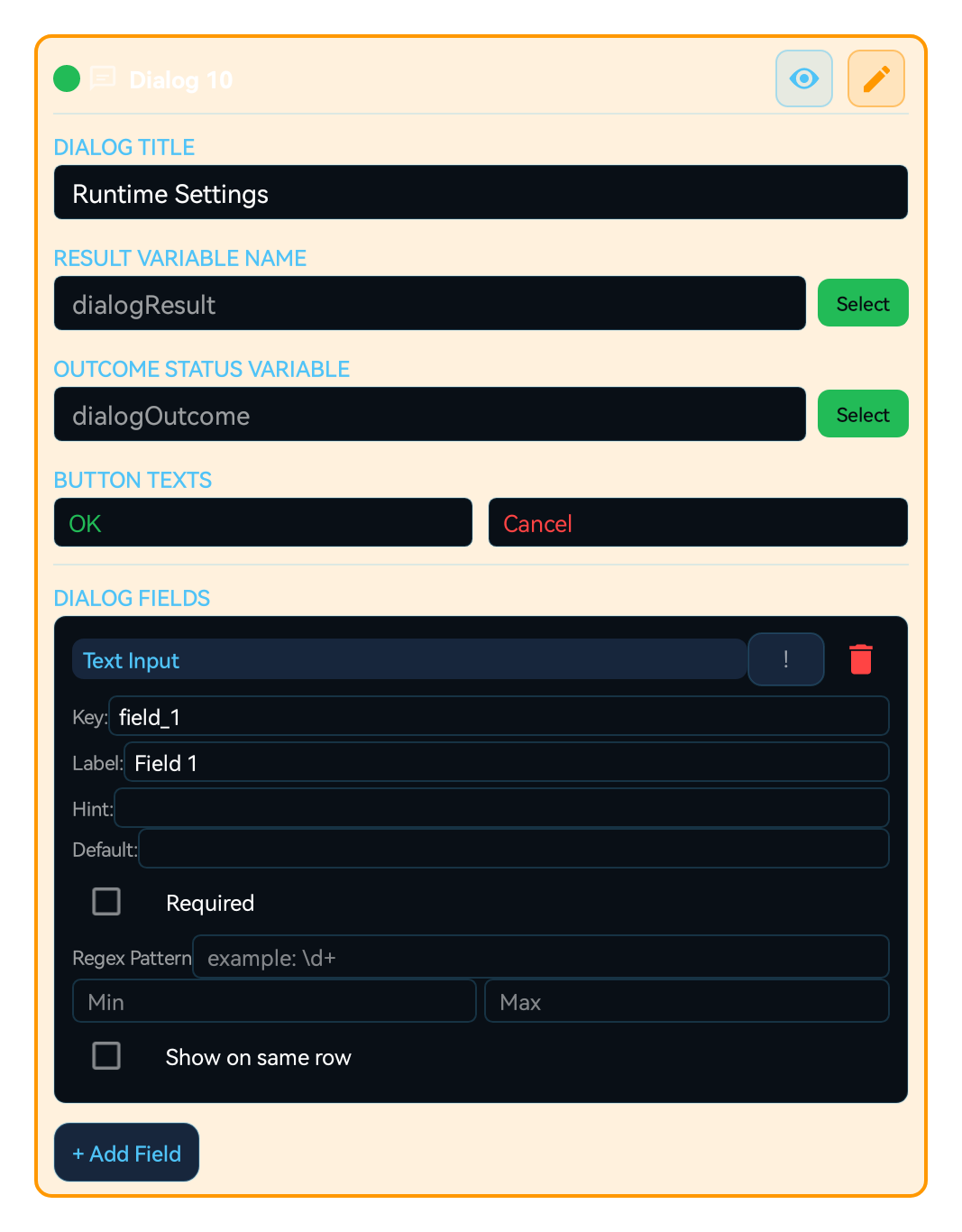
Dialog blocks teach how to build runtime settings, checkbox, radio group, picker, and input fields.

Dialog and form block screen
  1. 1Choose the field type first: input, checkbox, radio, image picker, and color picker do not serve the same purpose.
  2. 2Write short but clear help text for every field; the user must know why the value is needed.
  3. 3Compare preview with runtime output; check empty, invalid, and long-text states before pressing start.

Form fields are explained not as decoration, but as safe runtime parameters that change macro behavior.

For checkbox and radio group selections, default value, required state, and help text are taught together.

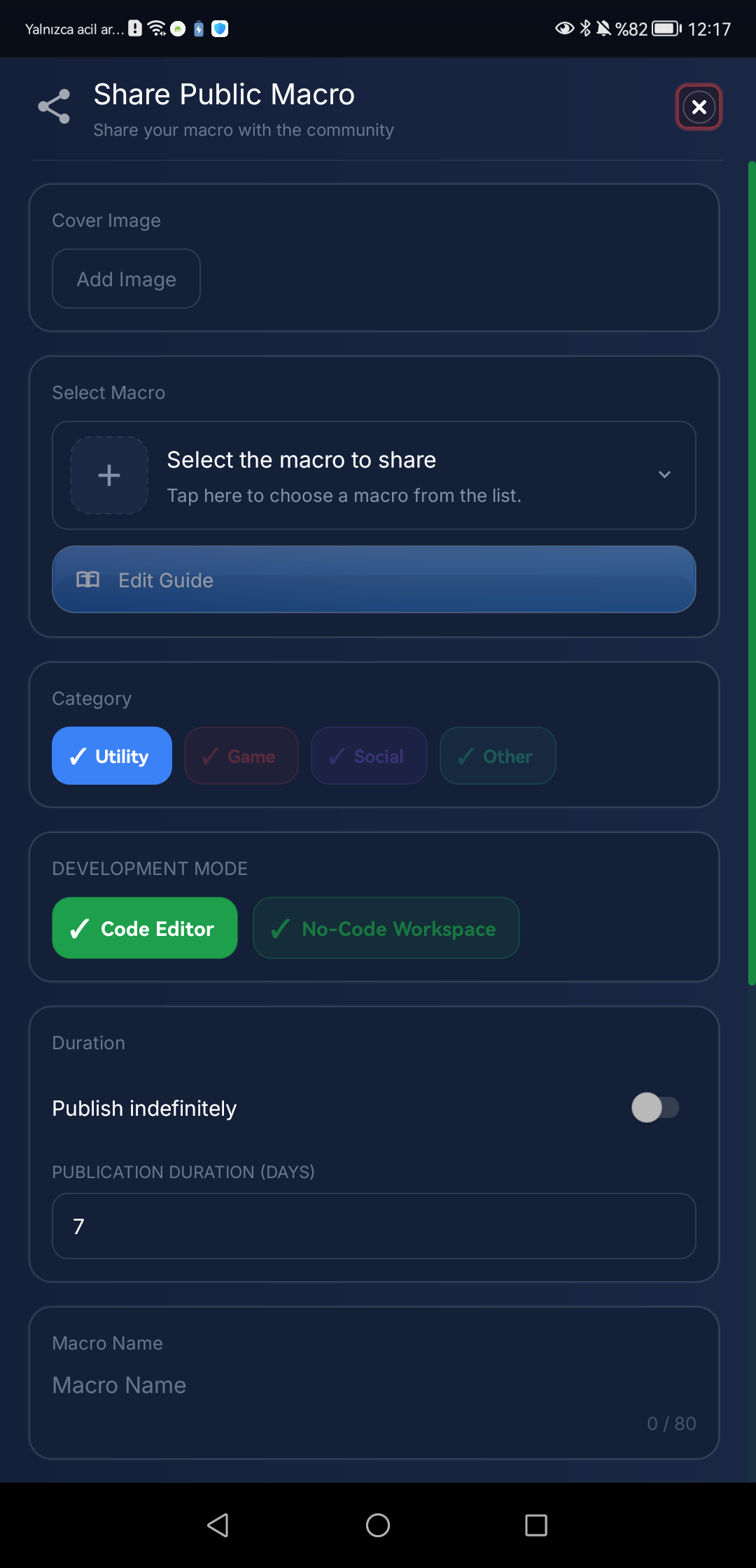
Macro sharing: package, description, and trust

Before sharing a macro, title, description, permission impact, visual proof, and community rules are explained clearly.

Macro sharing screen
  1. 1Write the macro name and description around the scenario; users should understand the purpose at first glance.
  2. 2Disclose permissions, external links, device dependencies, and risky actions before sharing.
  3. 3After publishing, monitor comments, reports, and update flow; community trust is part of macro quality.

Macro sharing, forum, and public macro screens are taught as one flow: prepare the macro, write safety context, publish, and monitor feedback.

The user learns comments, reports, blocking, and moderation notifications through visual examples.

Variables, groups, and reusable flow

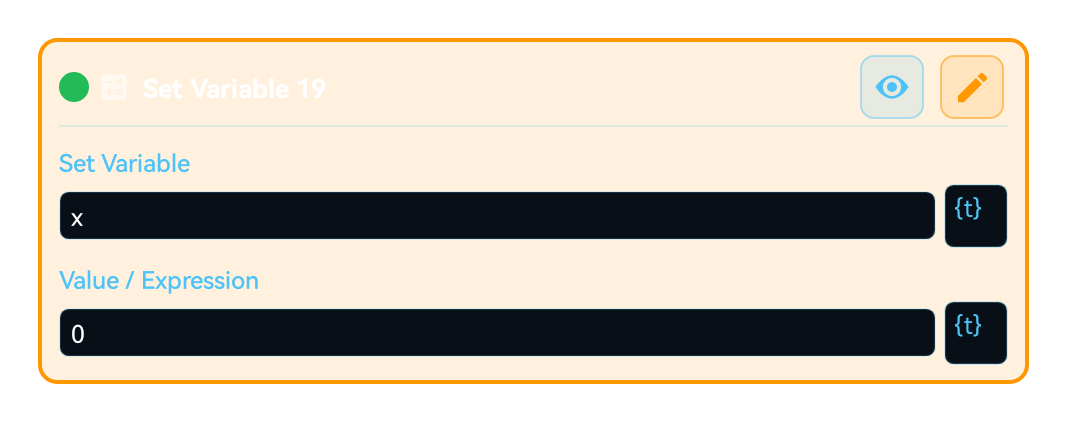
Complex macros keep state with variables, reuse steps with group blocks, and stay manageable through folders and macro organization.

Variable block screen
  1. 1Choose a variable name that is clear for the scenario; it must stay readable inside groups and conditions later.
  2. 2Clarify the value type: number, text, boolean, and last-found coordinate are not used the same way.
  3. 3If multiple blocks read the same value, reduce repetition with groups and keep the macro maintainable.

The web guide teaches the move from small to large macros: define variables first, create a group next, then call the same group under different conditions.

This prevents long block chains from becoming tangled and teaches non-code users professional structure habits.

Forum and community area: learn, ask, share

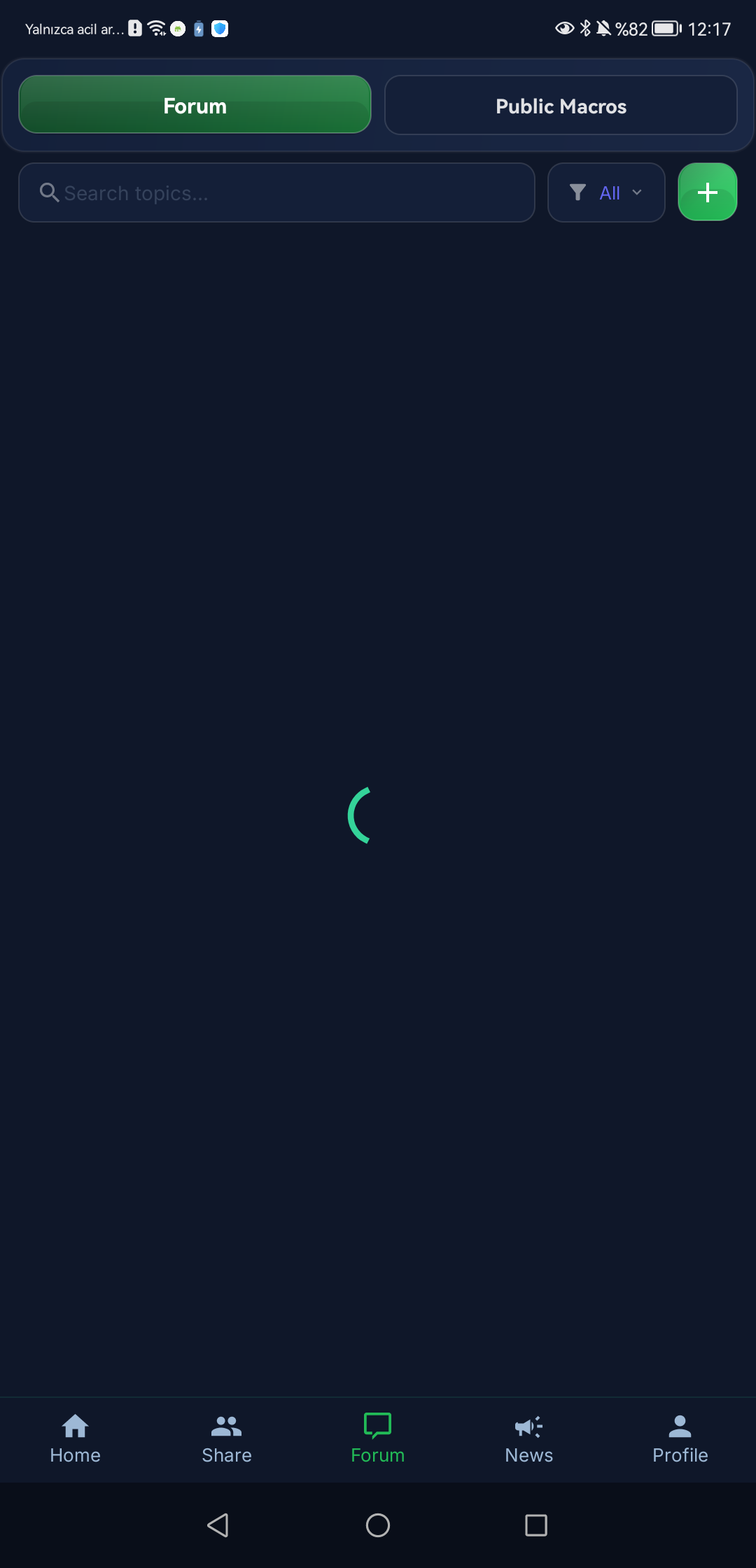
The forum area teaches users how to inspect shared macros, ask questions, receive feedback, and understand moderation rules.

Forum screen
  1. 1Inspect topics and example macros first; a similar issue may already have been solved.
  2. 2When opening a question, state device model, Android version, permission state, expected behavior, and the actual failure clearly.
  3. 3Use report, blocking, and moderation notifications as part of the community safety flow.

Shared macros, forum comments, and report flows are explained with the same quality language; users learn when to share and when to report.

This area is not only promotion; it is part of in-app community safety and the learning loop.

Settings, support form, and user safety

Account, notifications, support requests, and safety settings are the foundation for sustainable app usage.

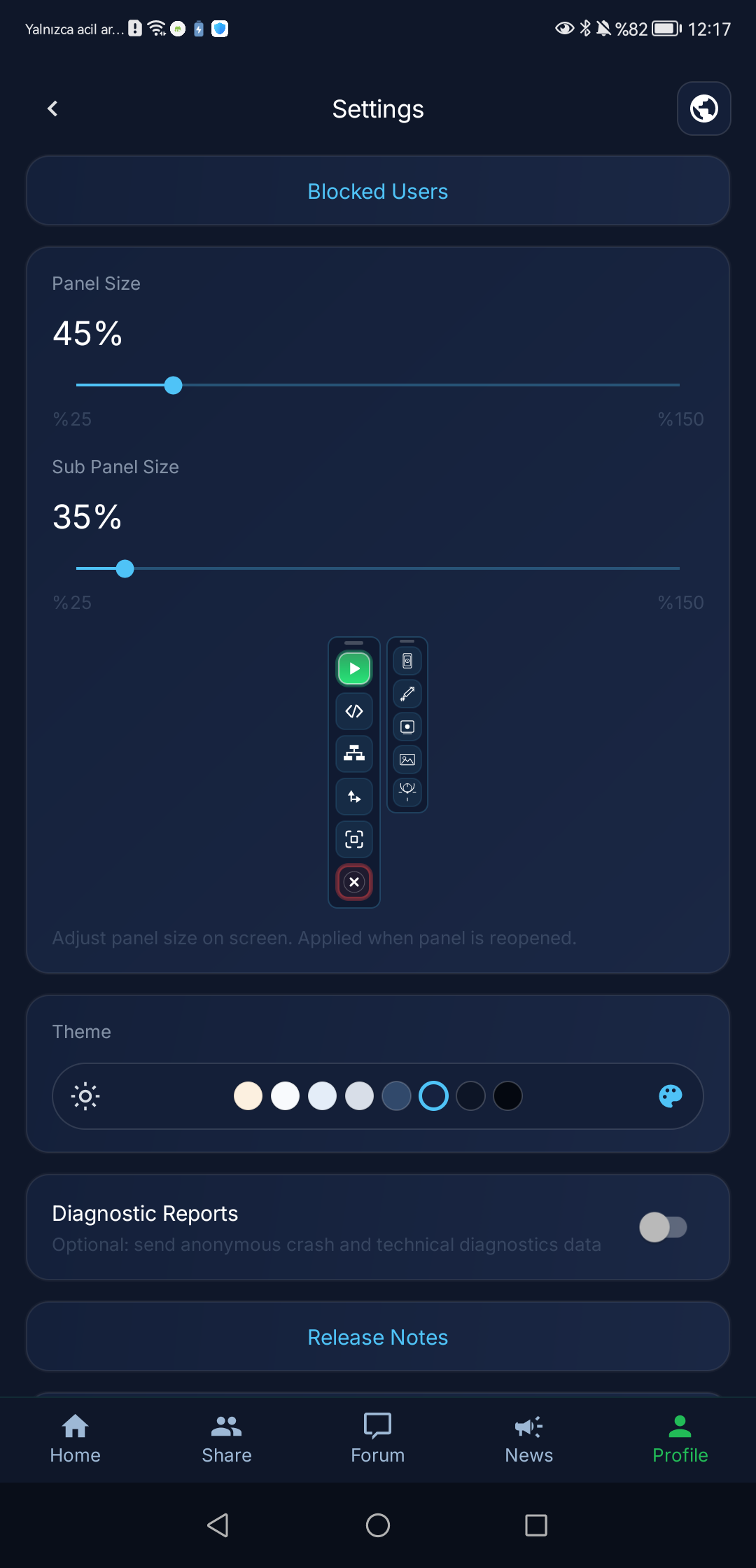
Profile and settings screen
  1. 1Regularly check account, premium, badge, and device state in the profile.
  2. 2Adjust language, notifications, permissions, and runtime preferences for the current device in settings.
  3. 3In support requests, send the failure step, device model, screenshot, and expected result clearly.

The website must teach the app end to end

The user must learn not only how to add blocks, but also permissions, settings, support forms, community safety, sharing rules, and macro behavior across devices.

For that reason, the guides are arranged as a training system connecting setup, first macro, no-code builder, code editor, API, dialog/forms, variables/groups, forum, and sharing areas.